
More Flexibility for Your Discounts — Now Apply Before or After Tax
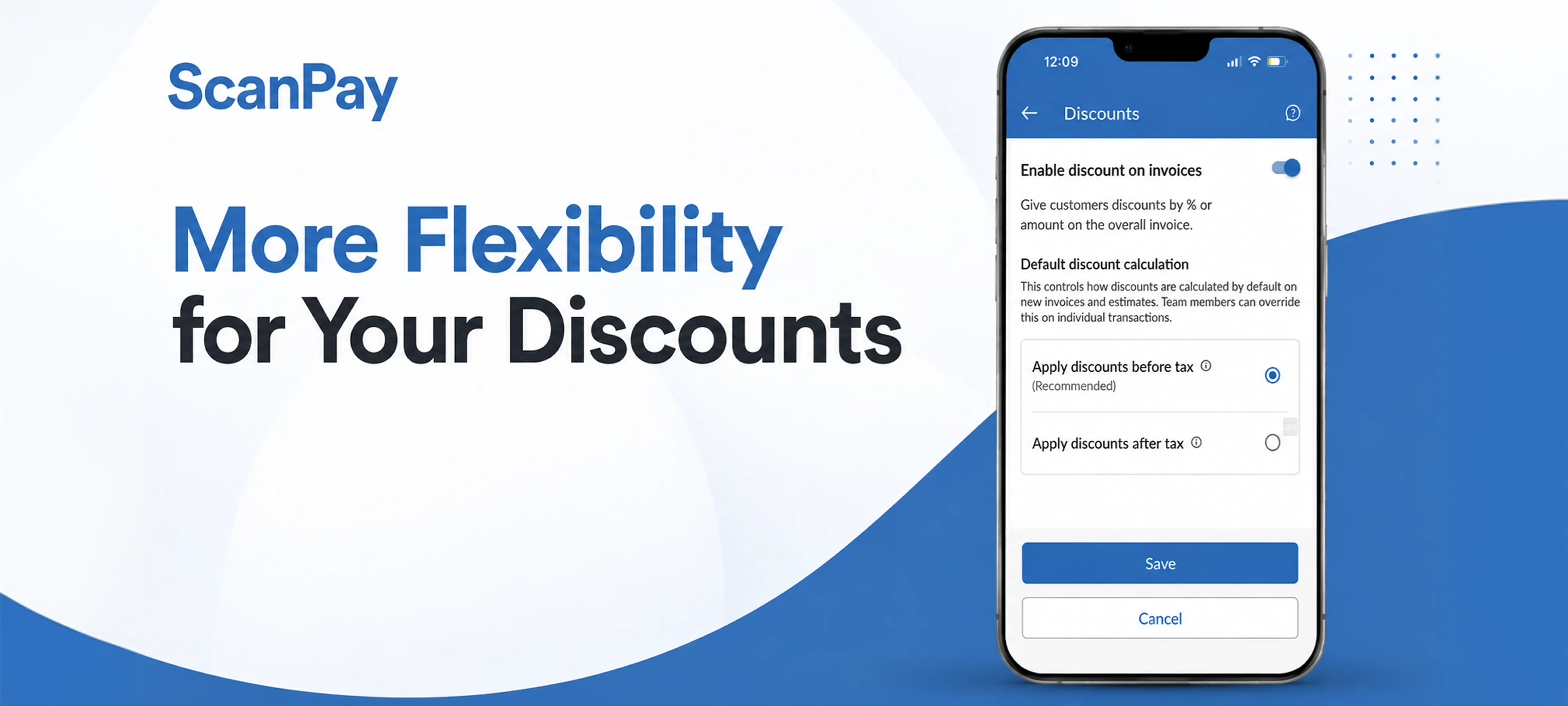
At ScanPay, we're always working to make invoicing more flexible and give your team the controls that match how your business actually operates. Today, we're excited to introduce Discount Timing Control — a new setting that lets you choose whether discounts are applied before or after tax on your invoices and estimates.
Not all discounts work the same way. A promotional discount you're offering a loyal customer works differently from a manufacturer's rebate or an instant rebate passed along from a supplier. Now, ScanPay reflects that distinction — giving you the right calculation for every scenario.
Introducing Discount Timing Control on ScanPay
With this update, you can now set a default discount calculation method for your entire team, and override it on any individual invoice when needed.
Here's what's new:
- Team-wide default setting: Set your preferred discount timing once in Team Settings and it applies to every new invoice and estimate your team creates. No need to configure it each time.
- Before-tax discounts (recommended for most teams): When a discount is applied before tax, it reduces the taxable amount — which means the customer saves more and your tax is calculated on the discounted price. This is the industry standard for promotional discounts and is now the default for all new ScanPay teams.
- After-tax discounts: Some discounts — like manufacturer rebates or instant rebates — are required by the issuer to apply after tax. You can select this option on any individual invoice, or set it as your team default if it fits your workflow.
- Per-invoice flexibility: Your team default is just a starting point. Any team member can override the setting when adding a discount to a specific invoice — so you always have the right calculation, regardless of the situation.
Getting started with Discount Timing Control
- Open Team Settings: In the app, tap the menu icon in the top left and go to Team Settings. On the web, find it in your left-hand navigation.
- Go to Invoice Settings → Discounts: You'll find the new Default Discount Calculation option here.
- Choose your default: Select "Apply discounts before tax" (recommended for most teams) or "Apply discounts after tax" if that better fits your business.
- Override on individual invoices: When adding a discount to any invoice, you'll see an "Apply discount after taxes" checkbox. Tap it to override your default for that transaction.

RELATED POSTS
More Flexibility for Your Discounts — Now Apply Before or After Tax

Tips to Earn More and Win More Customers with Free, Professional Invoices


